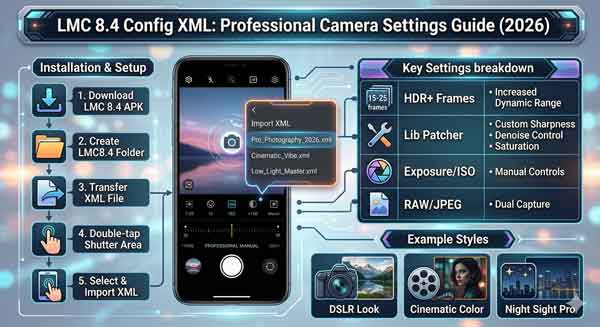
If you want to achieve professional, DSLR-like photography from your smartphone, understanding how to use LMC 8.4 Config XML files is essential. While the LMC 8.4 camera app provides a solid foundation, the true magic happens when you apply custom configuration files. These presets are specifically tuned by photography experts to optimize the camera sensor for various lighting conditions, skin tones, and landscape details.
In this comprehensive guide, we will explore what these configuration files are, how they work, and the step-by-step process to implement them on your Android device. By the end of this article, you will be able to capture stunning images that look like they were taken with an expensive professional camera. Before proceeding, make sure you have installed the base app from our LMC 8.4 Camera Guide.
1. What are LMC 8.4 Config XML Files?
An XML (Extensible Markup Language) file in the context of this camera mod is essentially a “profile” that contains thousands of lines of code. This code tells the app exactly how to process an image. From noise reduction and sharpness to color saturation and ISO levels, the LMC 8.4 Config XML manages every technical aspect of the photo-taking process. Instead of manually adjusting hundreds of settings, you can simply import a file and get instant, professional results.
2. Why You Should Use Custom Config Files
Many users wonder why they can’t just use the default settings. Here are the primary reasons why these files are a game-changer for mobile photographers:
- Device Optimization: Every smartphone sensor is different. A profile made for a Samsung sensor might not work well on a Xiaomi device. Custom files ensure the software is perfectly calibrated for your specific hardware.
- Specific Lighting Modes: You can have different profiles for “Bright Daylight,” “Night Photography,” and “Indoor Portraits.” Each one optimizes the exposure and contrast for that environment.
- Advanced Color Science: According to Android photography standards, default camera apps often over-saturate colors. Expert XML files provide natural skin tones and a balanced dynamic range.
3. Top Types of LMC 8.4 Config XML Profiles
Depending on your photography style, there are several popular profiles you can use:
A. The Leica Authentic Look
This profile is inspired by the legendary Leica cameras. It focuses on deep blacks, high contrast, and a classic moody aesthetic. It is perfect for street photography and dramatic portraits.
B. Vibrant HDR+ Config
If you love landscape photography, this is for you. It boosts the dynamic range, ensuring that the sky is perfectly blue while the ground details remain sharp and clear without being dark.
4. Step-by-Step Guide: How to Setup LMC 8.4 Config XML Files
Follow these steps to successfully implement your configuration files on any Android device:
- Create the Correct Folder: Open your phone’s internal storage using a File Manager. Create a new folder named exactly LMC8.4.
- Organize Your XMLs: Move all your preferred
.xmlconfiguration files into this new folder. - The Import Shortcut: Double-tap on the empty black space around the shutter button. A popup menu will appear instantly.
- Select and Apply: Choose your desired LMC 8.4 Config XML from the list and tap on “Import.”
Conclusion
Mastering the use of these files is the final step in becoming a mobile photography expert. Experiment with different profiles to find the one that fits your creative vision. For more professional Android guides, stay tuned to ApkRulz.