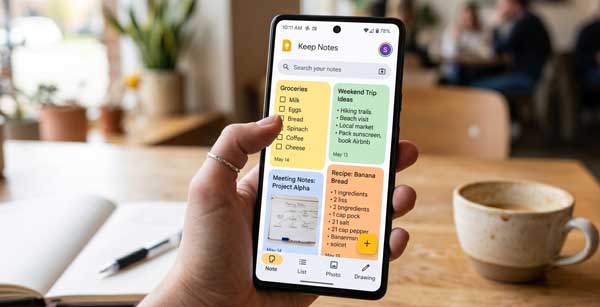
In 2026, we are constantly surrounded by new ideas and information. Consequently, having a fast and reliable way to capture these thoughts is essential. While many complex note-taking apps exist, they often slow you down with complicated menus. The Google Keep app offers a professional and minimalist solution to this problem. It is designed for speed and simplicity. Whether you are taking a quick voice note or scanning a document, this app handles everything instantly. If you want to stay organized without the clutter, mastering Google Keep is a brilliant choice.
In this ultimate guide, we will explore the professional features of Google Keep on Android. Moreover, we will see how it integrates with the Google ecosystem. From AI-powered image text extraction to smart reminders, this manual covers everything. Just as we secured our files with the OneDrive Guide, capturing your ideas quickly is a vital step in modern mobile productivity.
1. Why Google Keep is Still the Best in 2026?
Google Keep is a lightweight note-taking application that prioritizes speed. Specifically, it uses a “Sticky Note” style interface. Unlike traditional apps, Keep allows you to create a note in just one tap. Therefore, it is perfect for capturing fleeting thoughts before they disappear. Additionally, it syncs perfectly with Gmail and Google Docs. As a result, you can access your notes from any device instantly. This reliability makes it a favorite tool for millions of Android users globally.
2. Key AI and Smart Features of Google Keep
To get the best experience, you must understand the core tools of the app. Here are the standout features that define its performance in 2026:
A. Grab Image Text (OCR Technology)
This is a powerful hidden feature of Google Keep. For example, you can take a photo of a document or a book page. Subsequently, you can use the “Grab Image Text” option to convert that image into editable text. Furthermore, the AI-powered OCR is incredibly accurate even with handwritten notes. Consequently, you don’t have to type long documents manually anymore.
B. AI Voice Transcription
Typing while walking is difficult and unsafe. However, Google Keep allows you to record your voice. Specifically, it not only saves the audio but also transcribes it into text instantly. For instance, you can speak your grocery list or a meeting summary. Additionally, the transcription works perfectly with multiple languages. This feature significantly boosts your productivity when you are on the move.
C. Location-Based Reminders
Sometimes you need a reminder at a specific place rather than a specific time. Therefore, Google Keep offers location-based alerts. For example, you can set a reminder to “Check the tire pressure” when you arrive at the gas station. Moreover, the app uses your GPS to trigger the notification exactly when you need it. As a result, you never forget important tasks again.
3. How to Set Up Google Keep for Professional Use
Follow these professional steps to optimize the app on your Android device:
- Color-Code Your Notes: First, assign specific colors to different categories like “Work,” “Personal,” or “Urgent” for better visual organization.
- Use Labels and Tags: Next, add labels to group related notes together. This makes searching through hundreds of notes very fast.
- Add Home Screen Widgets: Finally, use the Keep widget to see your most important checklists directly on your home screen without opening the app.
4. Professional Tips for Power Users
- Collaborative Lists: Additionally, share your notes with others and work on shared shopping lists or project ideas in real-time.
- Export to Google Docs: Furthermore, if a note becomes too long, use the “Copy to Google Docs” feature to turn it into a full-scale document instantly.
- Pinned Notes: Moreover, pin your most frequent notes to the top of your feed so they are always visible when you open the app.
5. Frequently Asked Questions (FAQs)
Q1: Is Google Keep completely free?
Yes, Google Keep is free for everyone with a Google account. There are no hidden costs or premium subscriptions for its core features.
Q2: Can I draw in Google Keep?
Yes. You can add drawings or sketches to your notes using the built-in pen tools, which is great for visual thinkers.
Q3: How many notes can I store?
Technically, there is no limit to the number of notes. However, your total storage is shared with your 15GB Google Account limit.
Conclusion
In conclusion, Google Keep is the ultimate tool for quick and efficient note-taking. By focusing on speed and smart AI features, it ensures that your ideas are never lost. If you want a clutter-free and organized digital life in 2026, making this app a part of your daily routine is a brilliant choice. For more professional Android app reviews, stay connected with ApkRulz. Capture your first idea today!
App Information:
You can access the latest version of the app directly from the official store.