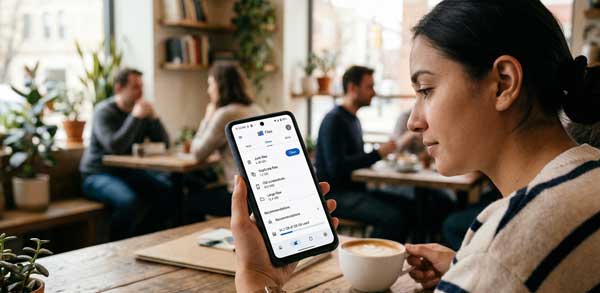
Managing files on a smartphone can quickly become overwhelming, especially with the thousands of photos, videos, and documents we receive daily. To solve this problem, the Files by Google app has become the gold standard for Android users. It is not just a simple file explorer; it is an all-in-one utility tool that helps you free up space, find files faster, and share them offline securely. If your phone is running out of storage, this app is your best solution in 2026.
In this comprehensive guide, we will explore the professional features of Files by Google and how you can use it to keep your device organized and fast. From the AI-powered cleaning suggestions to the encrypted “Safe Folder,” this manual covers everything you need to know about this essential Android application. Just as we discussed battery longevity in our Android Battery Life Optimization Guide, managing your local data is a key part of maintaining overall phone health.
1. Why Choose Files by Google Over Other File Managers?
Most pre-installed file managers are cluttered with ads or have a complicated interface that makes finding documents difficult. Files by Google stands out because it is lightweight, ad-free, and designed with a “Simple First” philosophy. It uses Google’s advanced algorithms to identify “junk” files that are safe to delete, such as duplicate photos, large unused videos, and meme-heavy WhatsApp folders. According to official app standards, it is optimized to work seamlessly on both budget Android Go devices and premium flagships.
2. Key Features of the Files by Google Application
To get the most out of Files by Google, you should master its three primary tabs: Clean, Browse, and Share. Here are the standout tools that every Android user should know:
A. Smart Cleaning Suggestions
The “Clean” tab is where the magic happens. Files by Google analyzes your storage and provides one-tap suggestions to remove temporary app files, blurry photos, and old screenshots. It tells you exactly how much space you will gain, helping you avoid that dreaded “Storage Full” notification during important moments. This AI-driven approach makes it much safer than third-party “cleaner” apps that often delete system files by mistake.
B. High-Speed Offline File Sharing
One of the best features of Files by Google is the ability to send and receive files without using any mobile data. By using a secure local Wi-Fi network, it can transfer large movies or folders at incredible speeds. It is significantly faster and more secure than traditional Bluetooth sharing, making it the perfect tool for sharing high-quality photos and videos without losing resolution.
C. The Encrypted Safe Folder
Privacy is a top priority for every smartphone user in 2026. The “Safe Folder” feature within Files by Google allows you to hide sensitive documents and media behind a PIN or Pattern lock. These files are encrypted and cannot be viewed by other gallery or third-party file manager apps. This provides a robust layer of local security, ensuring your private data remains protected even if someone else uses your phone.
3. How to Use Files by Google to Speed Up Your Android Phone
Storage clutter is a primary reason for mobile lag and performance degradation. By using Files by Google effectively, you can maintain a high-performance device. Regularly check the “Unused Apps” section, which identifies applications you haven’t opened in over 30 days. Deleting these forgotten apps not only frees up valuable storage but also stops hidden background processes that drain your battery and RAM. This manual cleanup is essential for long-term device efficiency.
4. Professional Tips for Advanced File Management
- Search Like a Pro: Use the powerful search bar to find files by name, type, or date. It works just like a web search, but specifically for your internal storage.
- Back up to Cloud: Files by Google integrates perfectly with Google Drive. You can easily select multiple files and move them to the cloud to keep your local storage empty while keeping your data accessible from anywhere.
- Analyze Folder Sizes: Quickly see which folders (like WhatsApp Media or Telegram) are consuming the most space and manage them directly within the app to prevent storage bloating.
5. Frequently Asked Questions (FAQs)
Q1: Does Files by Google delete important photos?
No. The app only provides suggestions based on junk file patterns. You have the final choice to review every single file before it is permanently removed from your device.
Q2: Can I recover files deleted by the app?
Yes. Files by Google includes a “Trash” folder where deleted files are kept for 30 days before being permanently erased. This gives you a safety net for accidental deletions.
Q3: Is the Safe Folder backup-able to the cloud?